


PixShaft
4.914.00 Reviews
App Specs
- Version
- 4.9.5
- Updated On
- License
- Free
- Downloads
- 10,000+
- Developer
- CeuiLiSA
- Categories
- Comics
- Platform
- Android
Screenshots

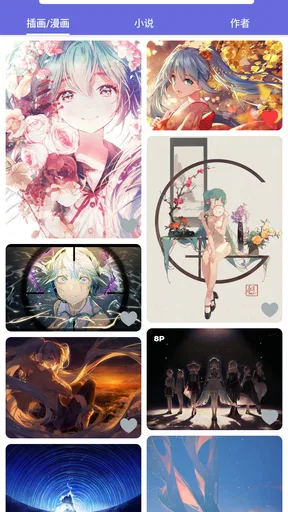


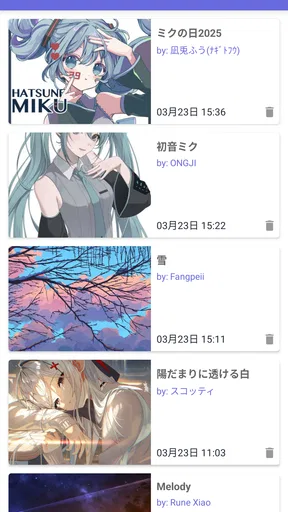

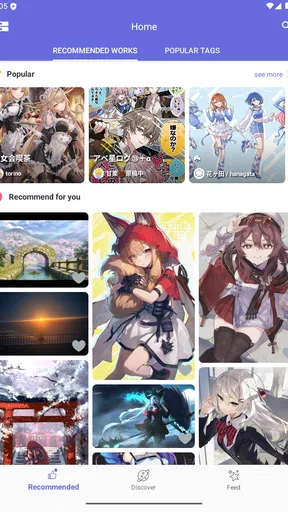
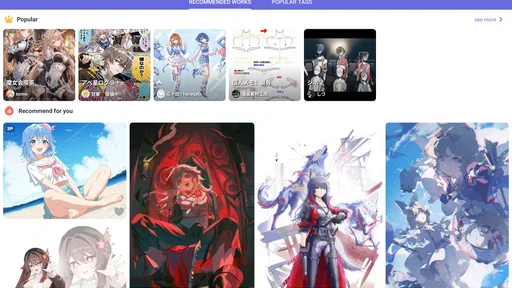
 Analysis by AppCompare
When I want to find fresh illustration work, comics, or novels without bouncing between several unrelated browsing tools, PixShaft is an appealing place to start. Its focus is creative work from artists around the world, so it suits the curious browsing session as much as the deliberate search for something new to read. I like the idea of one destination for visual art and longer-form storytelling, though the best way to use it is to treat discovery as a habit rather than expect a perfectly tailored feed from the first visit.
PixShaft is a free comics app from CeuiLiSA, rated for Everyone and available on Android devices running version 7.0 or later. Its current version is 4.9.5. The app has a 4.9 average from around 255 ratings, with over 10,000 installs. Those figures suggest that it has found an audience, but they are not a substitute for deciding whether its particular mix of illustration, comics, and novels matches what you want.
Finding a comfortable browsing routine
I find it helpful to think of PixShaft as a place to explore, not a checklist to clear. In this section, I’d focus on small repeatable choices—such as deciding whether I’m in the mood for images or a story before opening the app—so a mixed collection feels easier to navigate. That approach also makes it simpler to notice what kinds of work are genuinely worth returning to.
Start with a purpose, then let discovery surprise you
The most useful baseline is to decide what kind of session you are having. If I have only a few minutes, I can browse for a striking illustration and move on; if I have more time, comics and novels give me a reason to stay with a creator’s work. That distinction matters because an app that brings several creative formats together can make casual exploration enjoyable, but it can also feel less focused than a dedicated comic reader or a gallery devoted to one kind of art.
I would begin by looking for work that already appeals to me, then use that as a launch point for exploring unfamiliar creators. This is a practical way to avoid scrolling aimlessly: notice the styles, subjects, or storytelling approaches that hold your attention, and use them to guide the next browsing session. The app’s worldwide creator focus makes that exploratory approach a natural fit, especially if you are open to art that does not resemble the work you usually encounter.
A realistic use case is a short break between errands. I might open PixShaft intending to look at one illustration, then spend a few minutes comparing different artists’ approaches before deciding whether I have time to start a comic or novel. For a longer evening session, I would reverse the order: choose a story first and keep image browsing for another time. Separating those intentions keeps a broad discovery tool from turning into an endless, unfocused feed.
Check the reading and browsing environment before settling in
Settings are worth reviewing early, particularly if you expect to read for more than a few minutes at a time. I would check what display and reading controls are available on my device, then adjust only what makes text or artwork easier to enjoy. Rather than changing several things at once, make one adjustment and see whether it helps. That simple habit makes it easier to return to a comfortable setup instead of repeatedly tweaking the app whenever the content changes.
Worth Reading Before You Choose

Switching to Android Auto Means Rethinking Your Driving Routine

Google Calendar Makes a Crowded Week Easier to Manage

Baby Panda World Brings Quick Play to Modern Phones, but Its Game Library Feels Busy

ESPN’s Live Game View Makes Following Close Games Easier

QuizzLand Review: A Good Fit for Short Trivia Breaks, Not Every Player

Basketball Stars: Multiplayer Is Fast, but Can It Recover When Matches Go Wrong?
It is also sensible to consider how you will browse on your own screen. Artwork and comics can be visually dense, while a novel places different demands on reading comfort. If you are using a smaller phone, you may prefer shorter sessions for detailed images and save longer text reading for a moment when you can focus. On a larger display, illustrations may be easier to inspect, but the content itself still determines whether the format feels comfortable.
I would not assume that every useful option is available just because a creative app has settings. The dependable approach is to explore the controls that are actually present in your installation and build a routine around them. That avoids planning around imagined features and gives you a clear answer to a common practical question: can this app fit the way I like to browse and read? A few minutes of setup can help; a long configuration project is unnecessary.
Use repeatable habits to make discovery less random
Experienced browsing is less about tapping quickly and more about remembering what you came to find. I find it helpful to give each session a small theme, such as looking for a new visual style, reading a little fiction, or exploring comics. Even without relying on any particular shortcut or personalization control, that repeatable habit reduces the feeling of being pulled in several directions by a mixed collection of formats.
Another useful pattern is to pause when a creator’s work catches your attention. Instead of immediately jumping to something unrelated, spend a little time exploring that work before returning to broader discovery. This balances two needs: following a promising thread and leaving room for new finds. It is a particularly good approach for illustration fans, for whom a single image may be enough to prompt interest in an artist’s other work.
For reading, I would separate discovery from commitment. First, browse until a comic or novel seems worth trying; then give it a focused session rather than switching between stories every few minutes. That makes it easier to judge whether the writing and visual style suit you. If you are browsing in short bursts, it is perfectly reasonable to use those sessions for finding candidates and save actual reading for a quieter moment.
These small routines are more useful than chasing a supposedly perfect feed. PixShaft is positioned as a way to encounter works from creators worldwide, and exploration naturally involves some uncertainty. A session may surface something unexpected rather than exactly the style you had in mind. I see that as a strength when I am curious and a drawback when I want a narrow, predictable catalogue.
Where PixShaft fits—and where it does not
For me, the key question is whether the pleasure of finding varied creative work outweighs the focus of a specialist reader or art service. I’ll look at the situations where PixShaft’s range is useful, then draw a clear line around cases where a narrower tool is likely to save time. Keeping that distinction in mind helps set realistic expectations before making it part of a regular routine.
A broad creative shelf has a trade-off
Compared with a dedicated comic reader, PixShaft’s appeal is the chance to move between comics, novels, and illustration discovery in one place. That range is useful when you are deciding what to enjoy rather than arriving with one specific title or format in mind. A specialist alternative may be better, however, if you want a tightly organized comic-reading experience or a tool built around a single medium. The broader scope is a convenience, not a guarantee that every format will feel equally focused.
It also differs from a general social feed. Here, the reason to open the app is creative work, not a stream of unrelated updates. For someone who wants a dedicated browsing session for art and stories, that focus is welcome. If you mainly want to follow friends, discuss releases, or manage a personal library, a community-oriented service or a purpose-built reading app may fit better. The right choice depends on whether discovery or organization is your main goal.
One limitation of any broad discovery approach is that finding a particular kind of work can take patience. When I know exactly what I want, a service with more specialized browsing tools may be quicker. When I am open to surprises, the same breadth becomes an advantage. I would judge PixShaft by how often its mix leads me to work I actually want to explore, rather than by expecting every visit to produce an immediate favorite.
Who will enjoy it, and who should look elsewhere
PixShaft is a strong candidate for people who enjoy illustration and want comics and novels within the same browsing destination. It is especially suitable for curious readers who like encountering creators beyond the names and styles they already know. Because it is free, trying it does not require a purchase decision, and its Everyone content rating makes its stated age classification broad. Parents should still make their own choices about what a particular reader browses.
I would recommend looking elsewhere if your priority is a highly controlled reading library, a specific catalogue, or a tool devoted exclusively to one medium. It may also be a poor match if you dislike exploratory browsing and want every session to lead directly to a known title. Those are not faults in themselves; they are signs that a specialist app could save time and better match your expectations.
Before making it part of a regular routine, think about your device and your usual reading habits. Android support begins at version 7.0, which helps people using older compatible devices, but the experience still depends on whether your screen and preferred format feel comfortable. If you mostly read long text, test that style of session; if you mainly admire illustrations, spend time with visual browsing instead. The formats you actually use should determine whether the app earns a place on your home screen.
My verdict after looking at its strengths and limits
What I value most about PixShaft is the combination of visual art and reading material under a discovery-first idea. It encourages me to approach a session with an open mind, and the best results come when I use a simple routine: decide whether I am browsing or reading, make the screen comfortable, and follow promising work before jumping elsewhere. That is a more rewarding way to use it than expecting a single visit to reveal everything worth seeing.
Its weakness is closely tied to that strength. A broad creative destination cannot feel as specialized as a tool designed only for comics, novels, or illustration. If I want an exact title or a highly focused reading workflow, I would choose a more targeted alternative. If I want to wander among creative formats and discover work from creators around the world, PixShaft makes more sense.
Overall, I would try it if your interests cross between art and stories, especially if you enjoy browsing without a strict plan. Its 4.9 average and modest audience give useful context, but my recommendation rests on the practical fit: PixShaft works best as a calm discovery stop for creative reading and illustration, not as a replacement for every specialist tool. Keep your sessions intentional, give promising work enough attention, and it can become a satisfying addition to your everyday browsing routine.
Pros
- Supports batch processing to handle several images efficiently.
- Offers a straightforward interface that is easy to navigate.
- Can reduce image file sizes for easier sharing and storage.
- Useful for preparing pictures for websites and social media.
- Lets users work with images directly on their mobile device.
Cons
- Output quality may decrease when compression is set too high.
- Processing large or numerous images can take longer on older devices.
- Supported image formats may be limited.
- Advanced editing controls may be lacking for experienced users.
- Results and available features can vary by app version and device.
FAQs for PixShaft
What is PixShaft, and what can I use it for?
PixShaft is the name of an app, but its exact purpose and features can depend on the specific version or publisher you find. Before downloading, check the store listing for a clear description, screenshots, and supported functions. Those details help you confirm whether it matches what you need and avoid confusing it with similarly named apps.
Is PixShaft available for Android and iOS?
Availability can vary by platform, region, and the app’s current release status. Look for PixShaft directly in Google Play or Apple’s App Store and verify that the publisher and app details match the product you intend to install. If you find it only on an unfamiliar third-party site, take extra care and do not assume that an unofficial download is safe or compatible.
Is PixShaft safe to download and use?
No app can be confirmed safe based on its name alone. Before installing PixShaft, review the publisher, recent user ratings, update history, and the permissions it requests. Be cautious if an installation file comes from an unknown website or asks you to disable device protections. Downloading through an official app store, when available, is generally the more prudent option.
Is PixShaft free, or does it include purchases or subscriptions?
Pricing and payment options depend on the version and platform. Check the app’s store page for its price, in-app purchases, subscription terms, and any trial conditions before you install it. Also review how subscriptions renew and how to cancel them through your store account. Do not assume that an app is completely free simply because downloading it costs nothing.
What should I check before installing PixShaft?
Confirm that the app supports your device and operating-system version, and make sure you have enough storage for installation and updates. Read the privacy information and permission prompts so you understand what data or device features PixShaft may access. It is also worth checking the latest release notes and reviews, since they can reveal compatibility issues or changes to features.


